

Refunds
Return funds from a completed stablecoin payment back to your customer
Refunds return funds from a completed stablecoin payment back to the payer. The payer receives an email with a link to complete the refund on their end. Refunds are started directly in Fuzebox.
Benefits
- Customer-friendly — the payer receives a link to complete the refund on their end.
- Simple to start — initiate a refund directly in Fuzebox whenever you need to.
Only one active refund (PENDING or PROCESSING) can exist per payment at a time. Once a refund completes, the payment is marked as refunded and no further refunds are accepted.
Automatic refunds
While not intended, sometimes consumers choose to manually send the crypto payment instead of using the Volt Checkout flow. As exchange rates fluctuate, such payments sometimes end up sending the wrong amount. To handle this without the need for manual intervention, you can enable automatic refunds for payments that end up UNDERPAID or OVERPAID:
UNDERPAID— The payer sent less than stated on Volt Checkout. The full amount will automatically be refunded. Refund fees are borne by the payer.OVERPAID— The payer sends more than stated on Volt Checkout. Excess funds are automatically refunded, as long as the amount is greater than the refund fee. Refund fees are borne by the payer.
This returns incorrectly sent funds to the payer without any manual action or cost on your side.
Starting a refund
Navigate to Stablecoins > Payments and select the payment you want to refund.
On the payment details page, click Start Refund. This is only available when:
- The payment status is Completed
- The payment has not already been refunded
- No other refund is currently in progress for this payment
- Your role has permission to create refunds
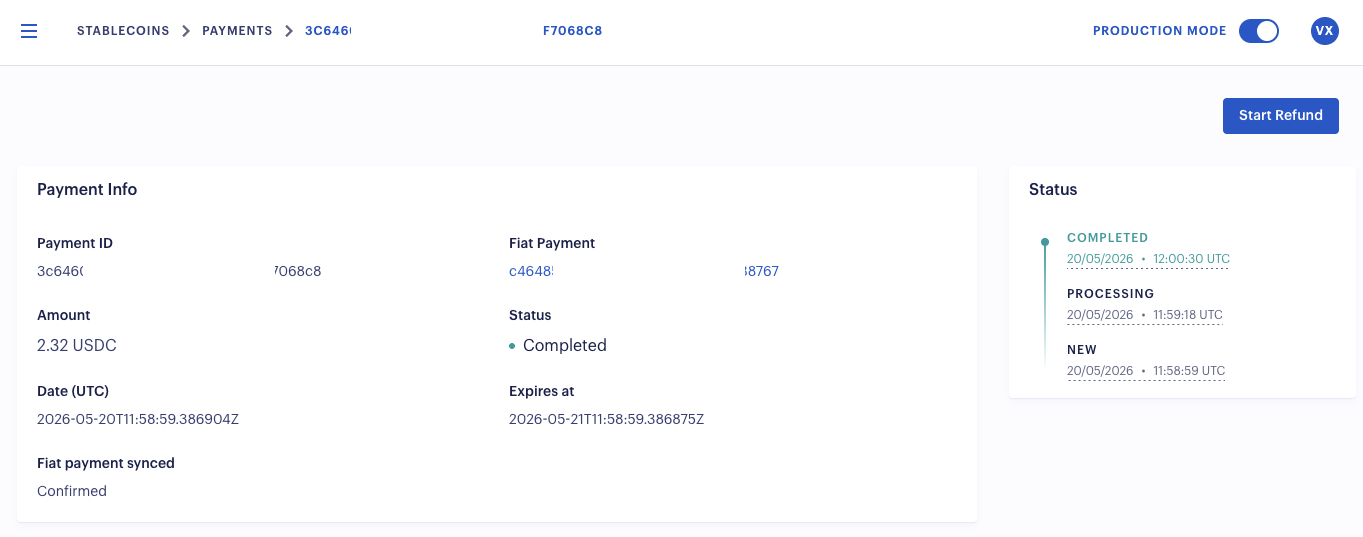
In the refund dialog:
- The Payer Email is shown for reference — this is where the refund link is sent.
- Select a Refund Wallet. Only wallets with sufficient funds can be selected.
- Optionally provide a Reason.
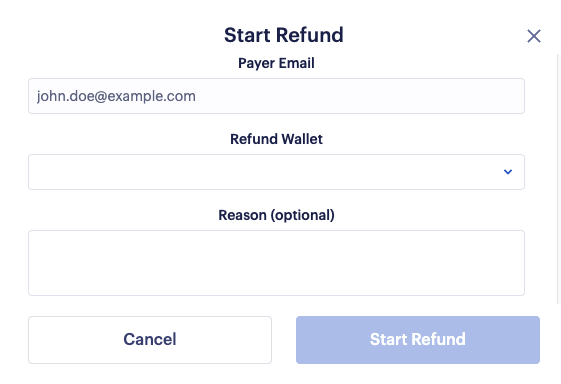
Click Start Refund to confirm. A refund link is sent to the payer's email address, and the refund status can be tracked on the payment details page. If a refund fails, the reason is shown there — see Refund statuses for the full list of statuses and failure reasons.
Refund statuses
| Status | Description |
|---|---|
PENDING | Refund created, processing has started. |
PROCESSING | Payout initiated, waiting for completion. |
COMPLETED | Funds successfully returned to the payer. |
FAILED | Refund failed (see failure reason below). |
CANCELLED | Refund was cancelled. |
Refund failure reasons
When a refund ends in FAILED, the response includes a failureReason:
| Failure reason | Description |
|---|---|
INSUFFICIENT_FUNDS | The wallet does not have enough funds. |
WALLET_NOT_FOUND | The specified wallet was not found. |
PAYOUT_CREATE_FAILED | The payout could not be created. |
REJECTED_BY_PROVIDER | The refund was rejected by the provider. |
MANUALLY_CANCELLED | The refund was manually cancelled by the user. |
INTERNAL_ERROR | An internal error occurred. |
How is this guide?
Last updated on